
Skeleton Screens
What is Skeleton Screens
Skeleton screens are blank pages that are progressively populated with content, such as text and images, as they become available. Grey or neutral-toned filled shapes, called placeholders, meet the user instantly upon user interaction with calls to action or links. The placeholders which we call as “Skeleton Screens” are then replaced with the actual site content after page loading is finshed and it is ready to display.
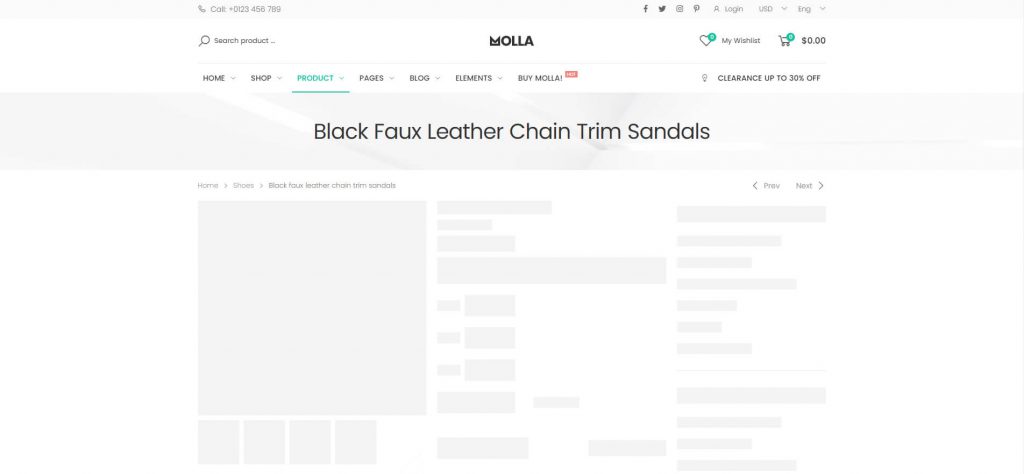
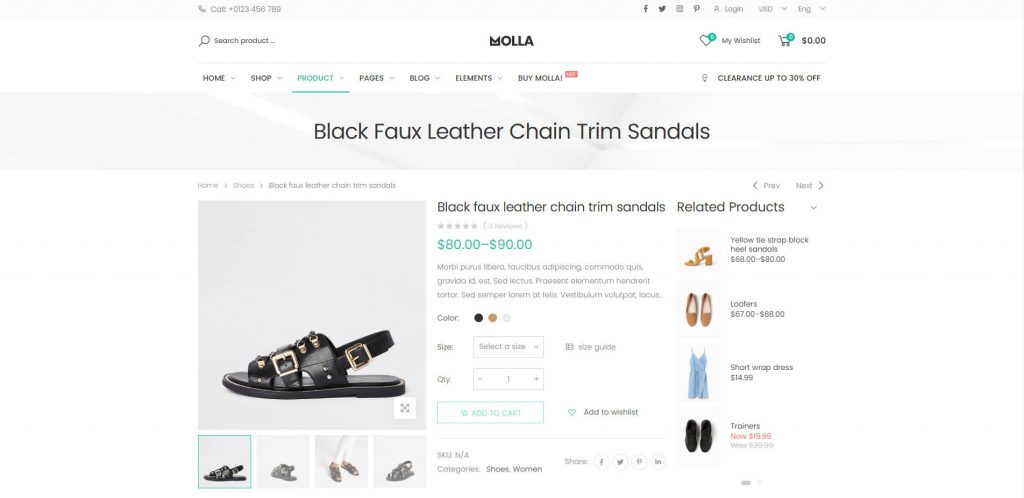
You can decrease page loading time up to 90 or 95 percent using skeleton screens.
How to enable Skeleton Screens
Navigate to Molla > Theme Options > General > Skeleton Screens section and check option.
Skeleton screens are available in shop page, product page, product quickview and blog pages.
How to customize skeletons
Each skeleton is drawn using css “background-image: linear-gradient”. You can find its code in “Skeleton screen” section in skeleton.scss.
If you want to change default product skeleton in shop pages, you can use following css selector.
.skeleton-body .skel-pro:before { background-image: linear-gradient… }
Related Posts
How to use Molla Block
What is Molla Block Molla Block is one of content post types that Molla theme offers. You can add or remove Molla Blocks in Blocks section on WP admin sidebar. Molla Block slug is unique per Molla Block as id similar…
READ MOREImage Swatch
What is Image Swatch Product has its attributes such as color, size etc and these attributes can be matched with image. We can see these images in archive & single product page. How to enable Image Swatch In order to…
READ MORESticky Add-to-cart
Molla supports you to make “Add to cart” button sticky in bottom of screen in single product page. It helps you can easily move to cart products. You can set this option in Molla > Theme Options > Woocommerce >…
READ MOREQuickview Popup Layout
You can change quickview popup layout in Molla > Theme Options > Woocommerce > Product Type > Extra > Quick View Popup option.
READ MOREPre-defined Product Layouts
There are 9 pre-defined product layouts in Molla. You can set global layout in Molla > Theme Options > Woocommerce > Single Product > Product Layout section. DefaltCenteredExtended InfoGallerySticky InfoBoxed with SidebarFull WidthMasonry Sticky Info NOTE: You can use different…
READ MOREShop Product Category Masonry Layout
You can show archive posts as several layouts in shop page. One of theme is masonry grid for product categories' archive. When you want to show categories in shop page, you should set Shop page display option as “subcategories” in Molla >…
READ MOREProduct Catalog Mode
Molla comes with product catalog mode for logged in users and visitors. You can set this option in Molla > Theme Options > WooCommerce > Product Type > Enable Catalog Mode option. For Visitors For Logged In Users
READ MOREDifferent Layout Per Product Category
Molla support various page options while creating or editing product category in Products > Categories. NOTE: Here “Default” is shop page's option. Category Icon Class - category's icon, it is useful when you print categories in menu Top Block Name -…
READ MOREShop Horizontal Filter
Molla supports various shop sidebar positions. One of them is shop horizontal filter. You can set this option in Molla > Theme Options > WooCommerce > Product Catalog > Page Layout. You can also use shop horizontal filter in specified categories…
READ MORE